

Google DeepMind’s Gemini 2.5 Computer Use model allows AI to truly learn how to “operate a computer.” This is not just a technological breakthrough, but the future of automation. This article will provide a comprehensive guide to mastering this powerful tool, from core concepts and application scenarios to a hands-on Python implementation tutorial.
Have you ever wondered what it would be like if an AI could not only talk to you but also “operate” your computer or mobile apps like a real assistant? It would no longer just send commands through cold code, but could directly understand the screen, click buttons, fill out forms, and drag files.
This sounds like something out of a sci-fi movie, but Google DeepMind’s latest Gemini 2.5 Computer Use model is making it a reality. This is a specialized model built on the powerful visual understanding and reasoning capabilities of Gemini 2.5 Pro. Its goal is clear: to give AI agents a “hand” that can understand and operate user interfaces (UIs).
Why do we need an AI that can “use a computer”?
In the past, AI’s interaction with software mostly relied on APIs (Application Programming Interfaces). You can think of an API as a software’s “menu,” and the AI can only give commands based on the options written on it. While this method is efficient, it is very limited.
In the real world, countless digital tasks—from booking a restaurant online, filling out complex application forms, to managing project boards—require direct interaction with a graphical user interface (GUI). We need to click, type, scroll, and select from drop-down menus. These actions, which are so natural for humans, are like an insurmountable gap for traditional AI.
The emergence of Gemini 2.5 Computer Use is to solve this fundamental problem. It allows AI agents to truly:
- Automate repetitive data entry: No more manual copy-pasting. Let the AI fill out various forms on websites for you.
- Perform automated testing: Simulate real user operation flows to conduct end-to-end testing of web applications.
- Cross-site research and information integration: Let the AI agent browse multiple e-commerce sites, collect product information, prices, and reviews to help you make purchasing decisions.
This step is crucial for building more powerful and general-purpose AI agents.
How does it work? Unpacking the “Agent Loop” behind the scenes
So, how does this model “see” and “do” like a human? Its core operating mechanism is a constantly circulating “Agent Loop.” The entire process can be simplified into the following four steps:
- Send a request to the model: You give the AI a task (e.g., “help me find the highest-rated smart refrigerator”) and attach a screenshot of the current screen.
- Receive the model response: The model will “see” the screenshot, analyze your request, and then decide what to do next. It will return a specific UI operation command, such as “type text in the search box at coordinates (371, 470).” This response may also include a security decision, reminding you whether this operation is risky.
- Execute the received action: After your application (client code) receives this command, it will actually execute the click or input action. If the model requires user confirmation, your program needs to pop up a prompt and wait for the user’s consent.
- Capture the new environment state: After the action is completed, your program will take a new screenshot and send it back to the model along with the operation result.
Then, the process will restart from step 2. The model will decide the next action based on the new screen, and so on, until the entire task is completed.
Step-by-step tutorial: Build your first AI agent with Python and Playwright
The theory sounds cool, but how do you actually do it? Next, we will use Python and Playwright (a powerful browser automation tool) to build a simple AI agent.
Step 0: Environment Preparation
Before you start, you need two things:
- A secure execution environment: Since the AI agent will actually operate the browser, it is strongly recommended to run it in a controlled environment, such as a sandboxed virtual machine, a container (Docker), or a browser profile with limited permissions.
- A client-side action handler: You need to write code to execute the commands generated by the model (such as clicking, typing) and capture the screen. This is where Playwright comes in.
Step 1: Install necessary packages
Open your terminal and enter the following commands to install the Python libraries for Google Generative AI and Playwright.
pip install google-genai playwright
playwright install chromium
Step 2: Initialize the Playwright browser
We need to create a Python script and initialize a browser window controlled by Playwright. This will be our AI agent’s workspace.
from playwright.sync_api import sync_playwright

# 1. Set the screen size of the target environment
SCREEN_WIDTH = 1440
SCREEN_HEIGHT = 900

# 2. Launch the Playwright browser
# In a production environment, please use a sandboxed environment
playwright = sync_playwright().start()
# Set headless=False to see the AI's operations on the screen
browser = playwright.chromium.launch(headless=False)

# 3. Create a context and page with the specified size
context = browser.new_context(
    viewport={"width": SCREEN_WIDTH, "height": SCREEN_HEIGHT}
)
page = context.new_page()

# 4. Navigate to an initial page to start the task
page.goto("https://www.google.com")

print("Browser initialized, ready to start the task.")
Step 3: Build the agent loop
This is the core of the entire project. We will implement the four-step loop mentioned earlier to allow the AI to continuously interact with the browser.
First, we need some helper functions to execute the model’s responses and return the results.
# Helper function: Convert the normalized coordinates (0-999) returned by the model to actual pixel coordinates
def denormalize_x(x, screen_width):
    return int(x / 1000 * screen_width)

def denormalize_y(y, screen_height):
    return int(y / 1000 * screen_height)

# Helper function: Execute the function calls returned by the model
def execute_function_calls(candidate, page, screen_width, screen_height):
    results = []
    for part in candidate.content.parts:
        if not part.function_call:
            continue

        fname = part.function_call.name
        args = part.function_call.args
        print(f"-> Executing: {fname}, arguments: {args}")

        try:
            if fname == "click_at":
                x = denormalize_x(args["x"], screen_width)
                y = denormalize_y(args["y"], screen_height)
                page.mouse.click(x, y)
            elif fname == "type_text_at":
                x = denormalize_x(args["x"], screen_width)
                y = denormalize_y(args["y"], screen_height)
                page.mouse.click(x, y)
                page.keyboard.type(args["text"])
                if args.get("press_enter", False):
                    page.keyboard.press("Enter")
            # ... Implement other supported actions here ...
            else:
                 print(f"Warning: Unimplemented function {fname}")

            # Wait for the page to load
            page.wait_for_load_state(timeout=5000)
            results.append((fname, {"status": "success"}))
        except Exception as e:
            print(f"Error: An error occurred while executing {fname}: {e}")
            results.append((fname, {"error": str(e)}))

    return results

# Helper function: Capture the new screen state and package it into a return format
def get_function_responses(page, results):
    screenshot_bytes = page.screenshot(type="png")
    current_url = page.url

    function_responses = []
    for name, result in results:
        response_data = {"url": current_url, **result}
        function_responses.append({
            "name": name,
            "response": response_data,
            "screenshot": screenshot_bytes
        })
    return function_responses
Now, combine all the parts to form the complete agent loop.
# (Please make sure you have set up your genai API key)
import google.genai as genai
from google.genai import types

# --- Complete agent loop main program ---
try:
    # 1. Set up the model
    model = genai.GenerativeModel(
        'gemini-2.5-computer-use-preview-10-2025',
        tools=[types.Tool(
            computer_use=types.ComputerUse(
                environment=types.Environment.ENVIRONMENT_BROWSER
            )
        )]
    )
    chat = model.start_chat()

    # 2. Initialize the task
    USER_PROMPT = "Go to aistudio.google.com and search for documentation about agents"
    print(f"Goal: {USER_PROMPT}")

    initial_screenshot = page.screenshot(type="png")

    # 3. Enter the agent loop
    turn_limit = 10
    for i in range(turn_limit):
        print(f"\n--- Turn {i+1} ---")

        # Send request to the model
        if i == 0:
            response = chat.send_message(
                [USER_PROMPT, initial_screenshot],
            )
        else:
            response = chat.send_message(function_responses)

        # Receive and execute the model's response
        candidate = response.candidates[0]

        if not any(part.function_call for part in candidate.content.parts):
            print("Agent finished:", candidate.content.parts[0].text)
            break

        results = execute_function_calls(candidate, page, SCREEN_WIDTH, SCREEN_HEIGHT)

        # Capture new state and prepare for the next turn
        print("-> Capturing new state...")
        function_responses = get_function_responses(page, results)

finally:
    # Clean up resources
    print("\nTask finished, closing browser...")
    browser.close()
    playwright.stop()
The AI’s toolbox: Supported UI actions
The Gemini 2.5 Computer Use model can generate a variety of UI operation commands. Here are some of the most common ones:
click_at(x, y): Clicks the mouse at the specified coordinates.type_text_at(x, y, text, ...): Clicks at the specified coordinates and then types text.drag_and_drop(from_x, from_y, to_x, to_y): Drags an element to another position.scroll_document(direction): Scrolls the entire page in a specific direction.navigate(url): Navigates directly to the specified URL.key_combination(keys): Presses a key combination, such as “Control+C”.
Security: Giving AI powerful capabilities requires putting on a “leash”
Giving AI control of a computer is a double-edged sword. Risks such as malicious use, phishing, and misoperation also come with it. Therefore, it is crucial to establish a complete set of security guardrails from the very beginning. Google provides multiple layers of protection:
- Human-in-the-Loop: When the model’s response contains a
require_confirmationsecurity decision, your program must pause and request user confirmation before continuing to execute. You cannot write code to bypass this request. - Custom security instructions: Developers can provide custom system instructions to limit the model’s behavior. For example, you can set rules to prohibit the AI from clicking any “agree to terms of service” buttons, or to require user authorization before conducting any financial transactions.
- Secure execution environment: Again, running the agent in a sandboxed environment can significantly limit the potential negative impact.
Developers have a responsibility to treat these risks with caution and implement appropriate security measures.
demo video
Conclusion and next steps
The launch of Gemini 2.5 Computer Use is not only a big step in AI technology, but also opens up a whole new world of imagination for the future of human-computer interaction. A general-purpose AI agent that can truly understand us and share the tedious tasks of the digital world may not be far away.
Ready to start building your AI assistant?
- Try it now: Go to the demo environment hosted by Browserbase to experience it for yourself.
- View sample code: Find more complete code examples in the GitHub reference implementation.
- Join the community: Share your ideas and feedback in the developer forum and shape the future of this technology with developers around the world.
- Documentation: https://ai.google.dev/gemini-api/docs/computer-use
DMflow.chat
DMflow.chat: Your intelligent AI partner for exceptional customer engagement.
Learn More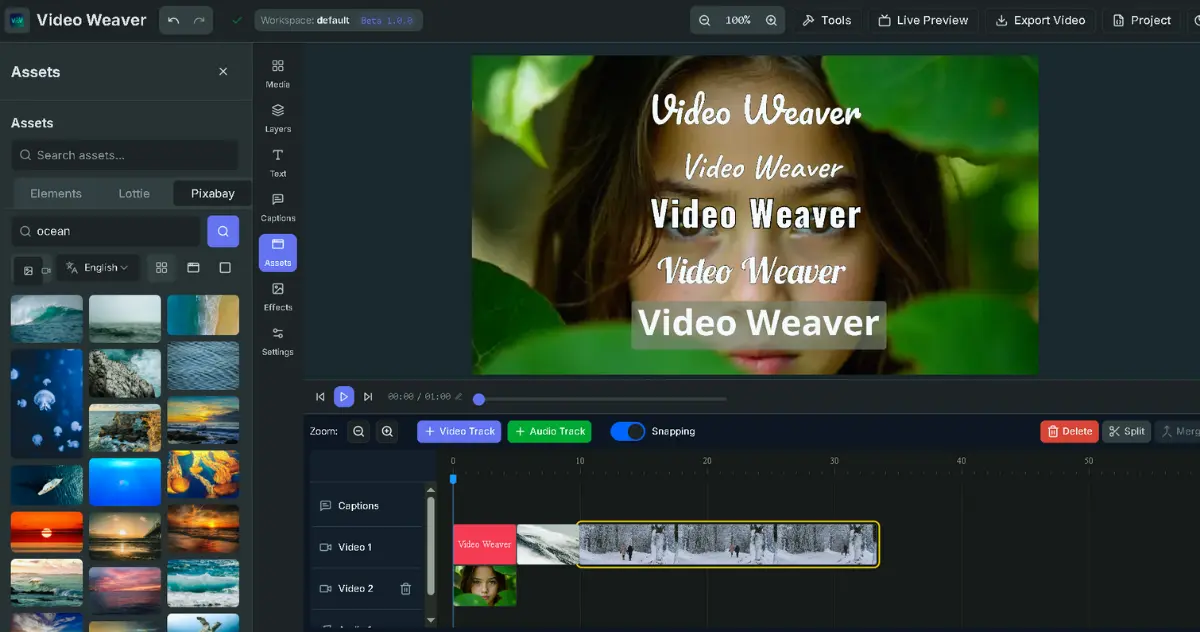
videoweaver.app
Video Weaver: Professional video editing directly in your browser. No downloads required.
Learn More
DMflow.chat
Discover DMflow.chat and unlock the new era of AI-powered customer service.
Learn MoreDMflow.chat
DMflow.chat: Your intelligent AI partner for exceptional customer engagement.
Learn Morevideoweaver.app
Video Weaver: Professional video editing directly in your browser. No downloads required.
Learn MoreDMflow.chat
Discover DMflow.chat and unlock the new era of AI-powered customer service.
Learn More